CC-Switch Setup
Open-source tool for managing API keys, MCP, and Skills with one-click channel switching
Overview
CC-Switch is an open-source tool that makes managing API keys, MCP servers, and Skills painless — no manual environment variables, and one-click switching between channels.
Downloads: https://github.com/farion1231/cc-switch/releases
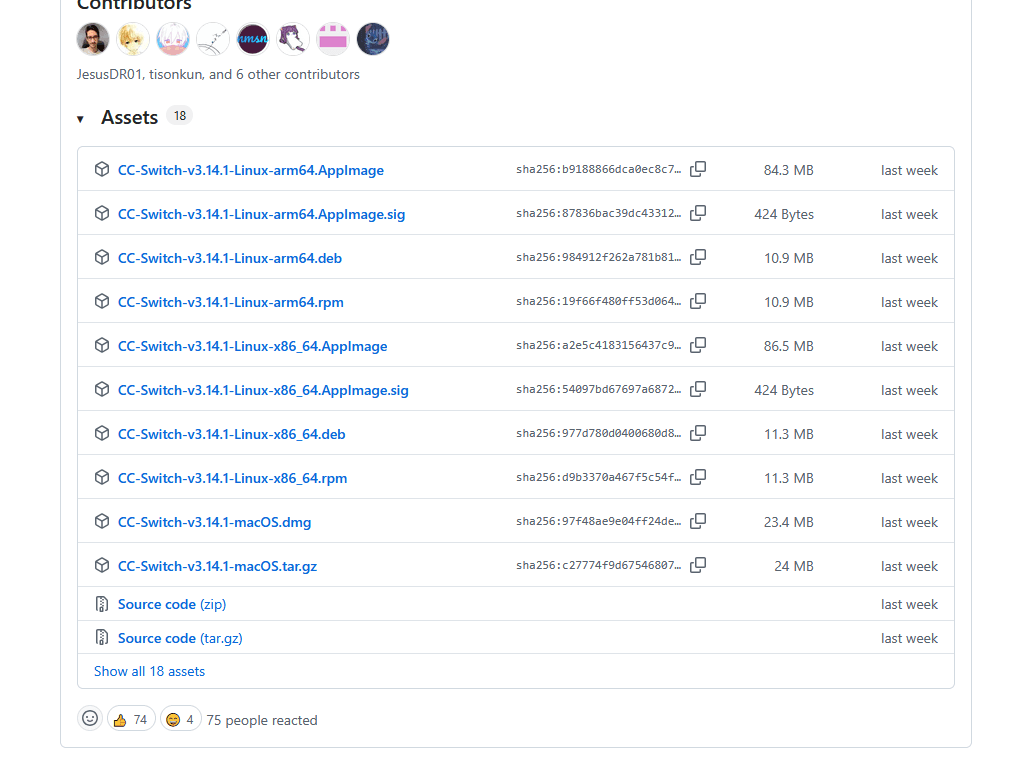
Download and Install
Pick the right package for your OS from the release page.
Windows
Download the .exe installer, double-click, and follow the wizard.
Mac
Download CC-Switch-vX.X.X-macOS.dmg (universal — works on Apple Silicon and Intel). Double-click to mount, then drag the icon into Applications.
For a no-install option, grab macOS.tar.gz, extract, and run directly.
If you see "cannot verify developer" on first launch, open System Settings → Privacy & Security and click Open Anyway.
Linux
Linux ships in three formats, each with arm64 and x86_64 variants — pick the one matching your CPU:
.AppImage: universal, no install required.deb: Ubuntu / Debian / Deepin and similar.rpm: CentOS / RHEL / Fedora / openSUSE and similar
AppImage (universal, no install)
chmod +x CC-Switch-*-Linux-*.AppImage
./CC-Switch-*-Linux-*.AppImage
deb package (Ubuntu / Debian)
sudo dpkg -i CC-Switch-*-Linux-*.deb
sudo apt install -f
rpm package (CentOS / RHEL / Fedora)
sudo rpm -i CC-Switch-*-Linux-*.rpmOr via dnf / yum:
sudo dnf install ./CC-Switch-*-Linux-*.rpmAdd a Channel
Have your API Key and request URL from the dashboard ready first.
Example: Claude
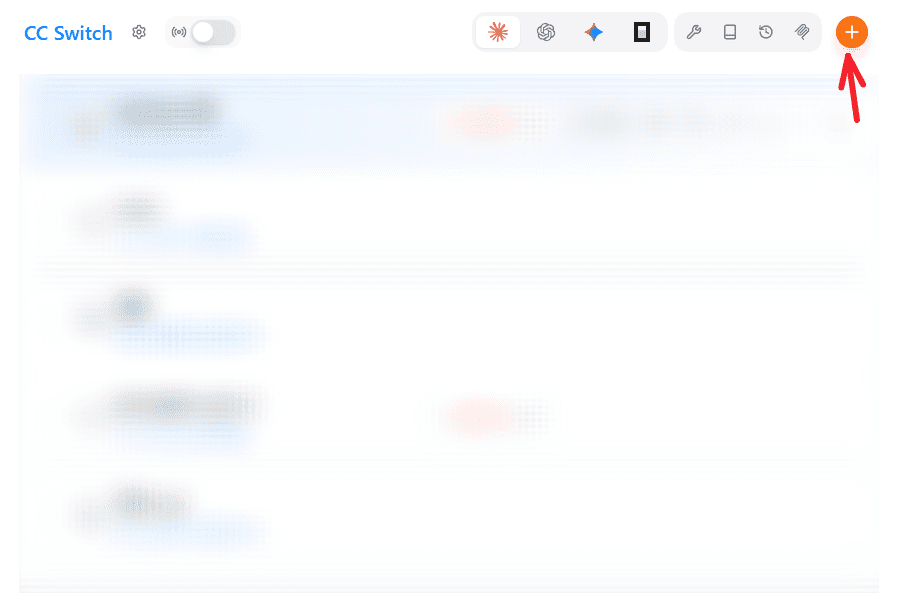
Pick the Claude icon at the top, then click the plus button.
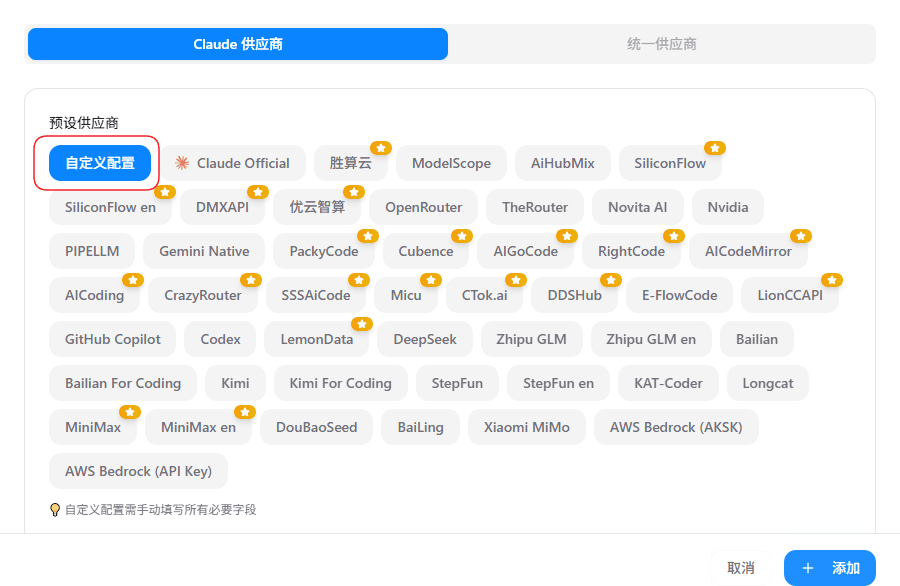
Choose Custom Channel.
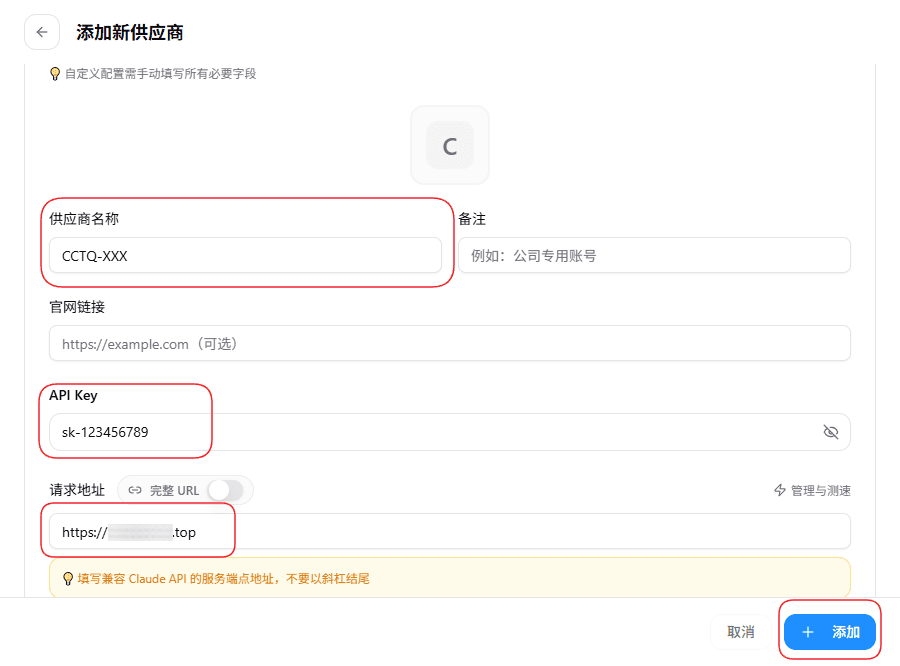
Fill in Provider name, API Key, and request URL, then click Add / Save. The channel activates automatically.
Example: Codex
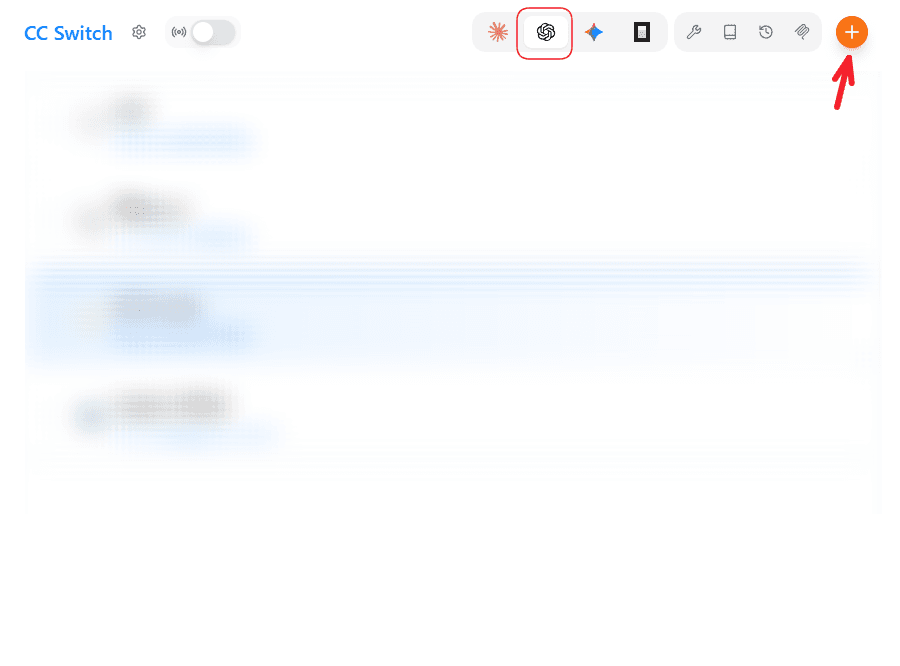
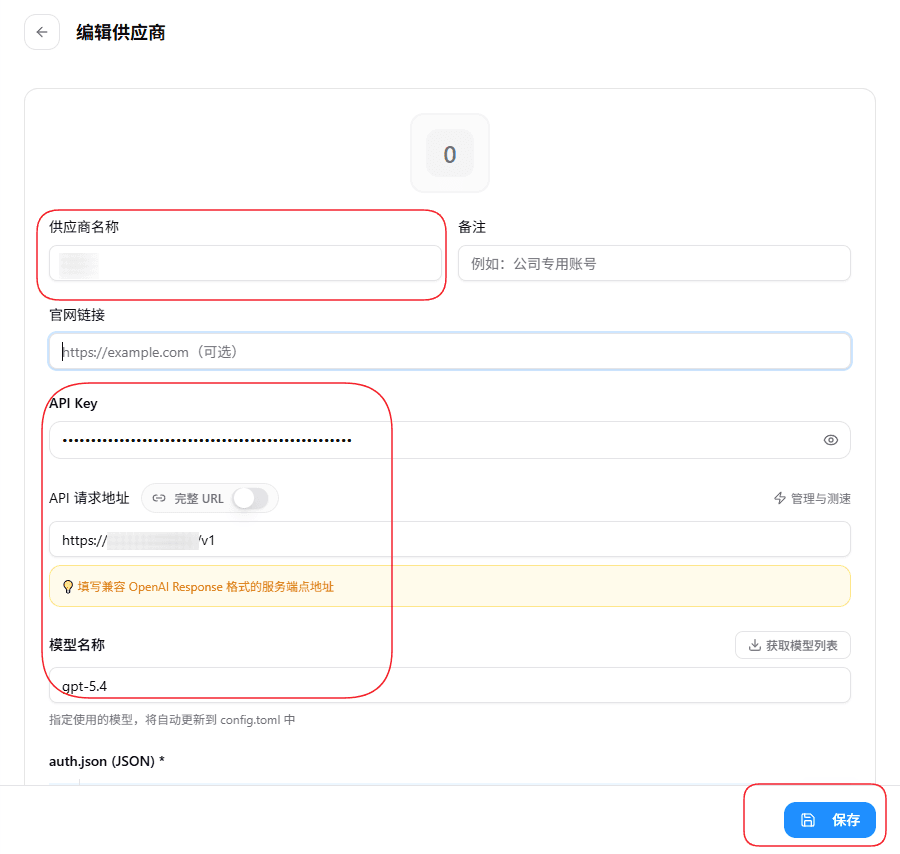
Fill in Provider name, API Key, and request URL (Codex requires a /v1 suffix). Click Add / Save to enable.
Example: Gemini
Same workflow — different label.
Optional Settings
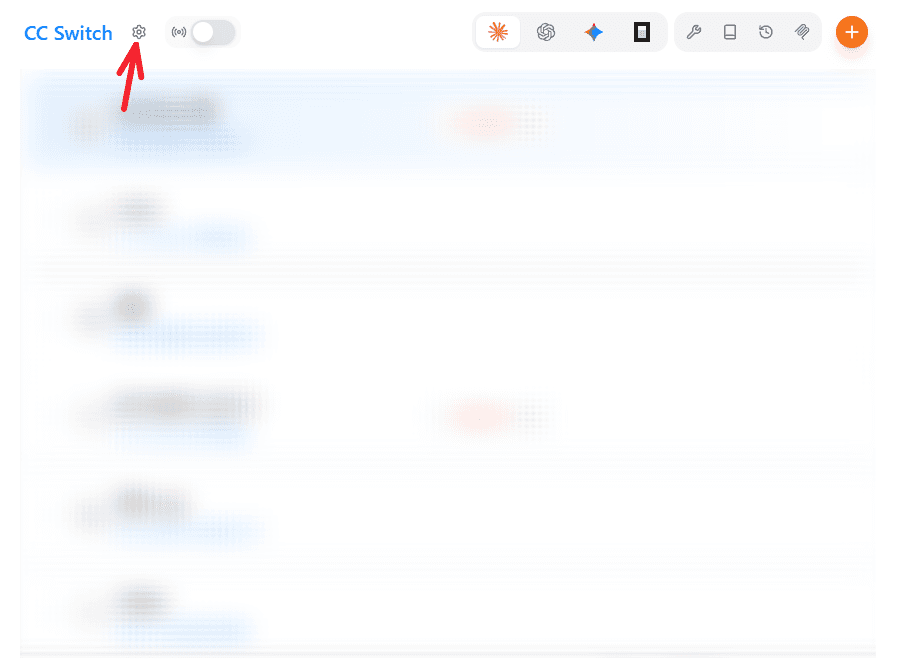
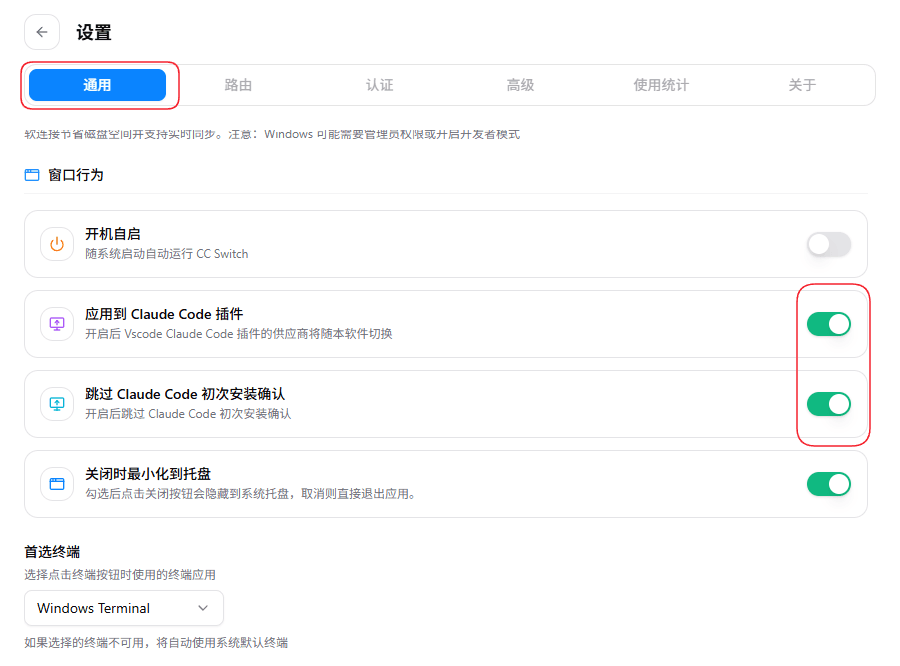
Recommended toggles:
- Apply to Claude Code plugin: lets the VSCode / JetBrains Claude Code plugin pick up the active channel automatically
- Skip Claude Code first-run prompts: avoids the login / consent dialogs the first time
clauderuns
Switch / Manage Channels
Click any channel on the main screen to make it active. No need to restart Claude Code — the next claude invocation picks up the new channel.
Channels can be edited, deleted, and reordered, making it quick to flip between Anthropic official, third-party proxies, and local proxies.